Demotron / Beginner basics / 00
Getting started
Picotron
Picotron is a fantasy workstation, which is a small imaginary computer that runs on your real one. It has a 480 × 270 pixel screen with 64 colours and a sound chip, and the tools for making games are built right into it, so the code editor, sprite editor, map editor and music editor all live inside Picotron itself. You write programs for it in Lua, which is a small programming language.
I like it for learning because there's nothing else to set up or install, we type some code into the editor and press a key and it runs. You don't need any programming experience for this lesson or for any of the ones after it.
Installing Picotron
Picotron is made by Lexaloffle, the people behind PICO-8. If you've used PICO-8, Picotron is more like a whole computer with its own desktop and file system, where PICO-8 is more like a Nintendo devkit.
Picotron is a paid program that runs on Windows, Mac and Linux, and you buy it at lexaloffle.com/picotron.php. Once you've paid they send you a download link, and future updates are included.
Download the version for your computer and unzip it, then start up the Picotron program that's inside. There's no installer or anything else to it.
Picotron is still in beta, so new versions turn up every so often and small things can change between them. The very bottom of every Demotron page says which version we made the lesson with, so if something in a lesson doesn't match what you see, compare versions first.
Workspaces
Each part of Picotron lives in its own workspace that fills the whole screen, and we switch between them with the icons at the top right of the screen.

The desktop holds your files and folders, the same as the desktop on your real computer. The terminal is where we type commands to Picotron, and it's how we'll save our work and load it back.
Two shortcuts save a lot of clicking. Escape flips between the desktop and the terminal, and Alt + Left and Alt + Right step through the workspaces one at a time (Option on a Mac).
A First Program
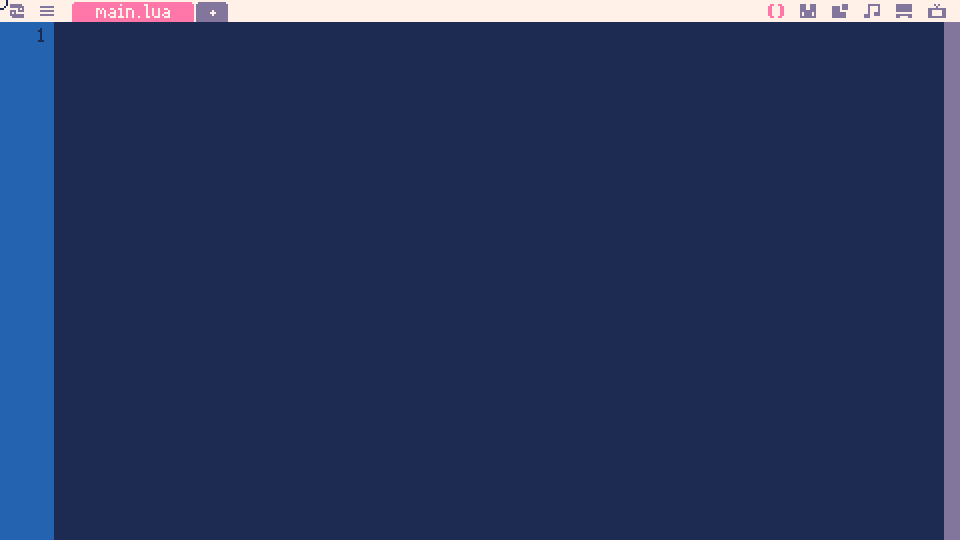
Click the code icon, the () at the top right, to open the code editor. It opens on main.lua, which is the file Picotron starts from whenever it runs a program, so that's where our code goes.
Let's start with a tiny program. Click Copy, then click inside Picotron's code editor and press Ctrl + V to paste it in.
1function _draw()
2  cls(1)
3  circfill(240, 120, 30, 12)
4  print("hello, picotron!", 200, 170, 7)
5endPicotron colours the code for you. Words that belong to Lua itself like function and end come out pink. Picotron's own functions are green while numbers and text are blue, and the code panels on this site use the same colours. Any other name, like _draw, stays grey.
That makes the colours a spelling check too, because if you mistype circfill the editor doesn't know the name, so it stays grey.
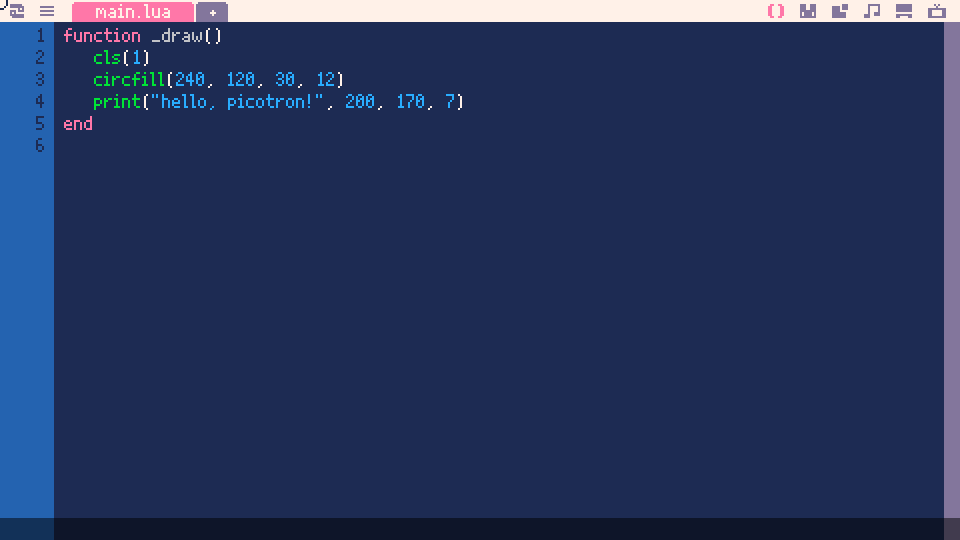
Press Ctrl + R to run it. The demo below is the same program running in the page (click it to start it), and your screen should look just like it.
The lines inside _draw run from top to bottom. cls(1) clears the screen to colour 1, which is dark blue, then circfill draws a filled circle over it and print writes the message. Picotron runs _draw every time it draws the screen, usually 60 times a second, and what the numbers in each line mean is what the next few lessons are about.
To stop the program press Escape, then Escape once more to get back to the code editor.
We'll go round the same loop in every lesson:
- Copy the code and paste it into the code editor.
- Press Ctrl + R and try it out.
- Press Escape and change something.
- Run it again.
Saving
The program we're working on lives in Picotron's memory, as the working cartridge. Cartridge is just Picotron's word for a project, meaning the code plus any sprites, maps and sounds that go with it. Picotron's memory is emptied every time it shuts down, so if we want to keep the program we have to save it to a file.
Go to the terminal by pressing Escape from the desktop or clicking the TV icon. Type this in and press Enter.
save helloPicotron puts .p64, the ending it gives every cartridge file, on the end of the name for us, so the file it saves is hello.p64.
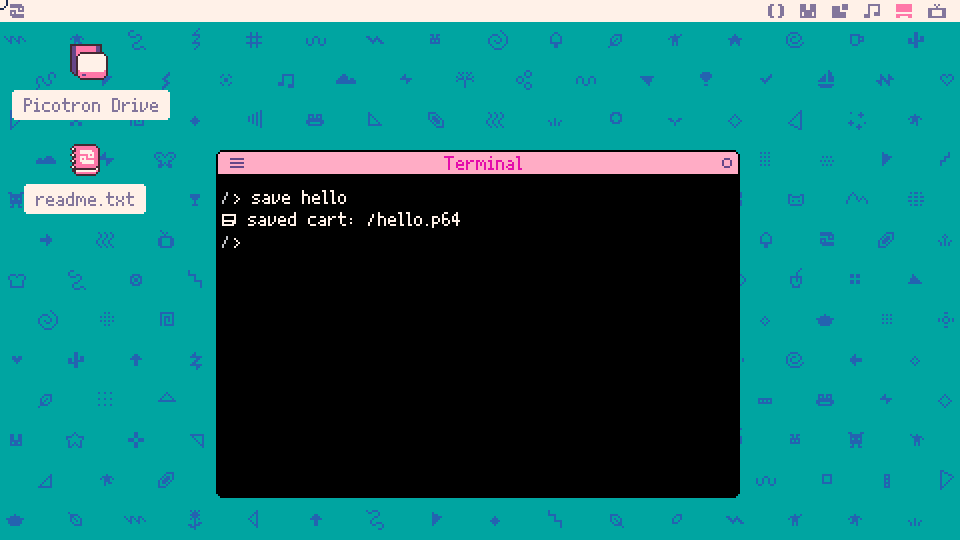
After that Ctrl + S saves it again under the same name, so we only need to type save the first time. Next time we start Picotron, typing load hello in the terminal brings it back and Ctrl + R runs it.
If you've forgotten whether you called it hello or hello_final_v2_actually_final, ls lists the files in the current folder. Basics 1 covers the drive and these commands properly.
Error Messages
Sooner or later a program won't run, usually about thirty seconds after you start typing, and Picotron tells us why. Here's the same program with one letter missing, so circfill has been typed as circfil.
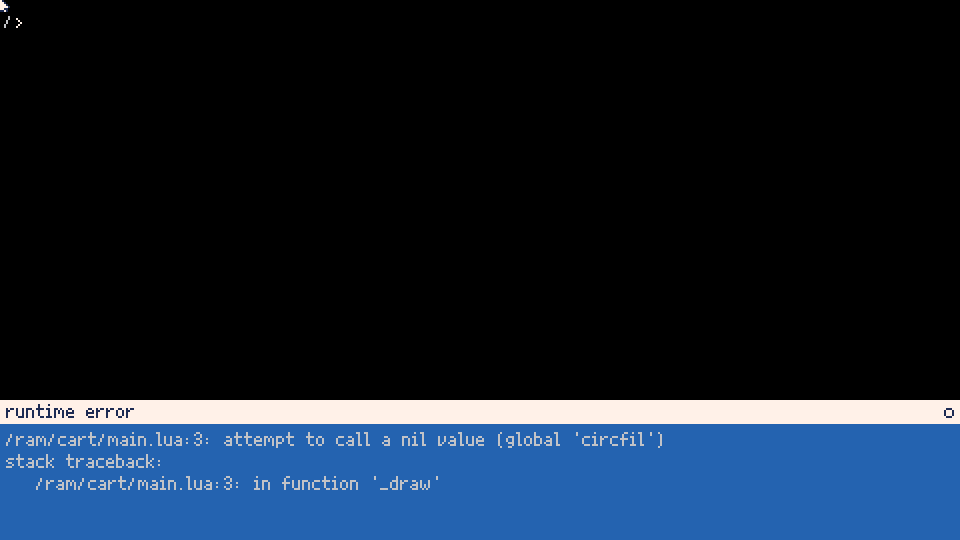
Picotron calls this a runtime error, because the program started without any trouble and only hit the problem once it was running and reached the bad line.
Read the first line from the left. /ram/cart/main.lua:3 means "in main.lua, line 3", and /ram/cart is the folder in Picotron's memory where the program we're working on lives. After that comes what went wrong, which here is "attempt to call a nil value (global 'circfil')".
To call a function means to run it, and nil is Lua's word for nothing. A global is a name that the whole program can use, and Picotron's own functions like circfill are globals too. So Picotron went looking for a function called circfil and found nothing by that name.
The stack traceback underneath lists the functions the program was inside when it stopped. Here that's only _draw, at the same line 3, and it gets more useful once our programs have functions that call other functions.
Put the missing l back and press Ctrl + R again and it runs.
An error message almost always tells us where to look. Go to the line it names and read it slowly, checking the spelling, the brackets, the commas etc.
Demotron Lesson Pages
Most of the lessons after this one are one long page with a demo that follows along as you read, laid out like this.
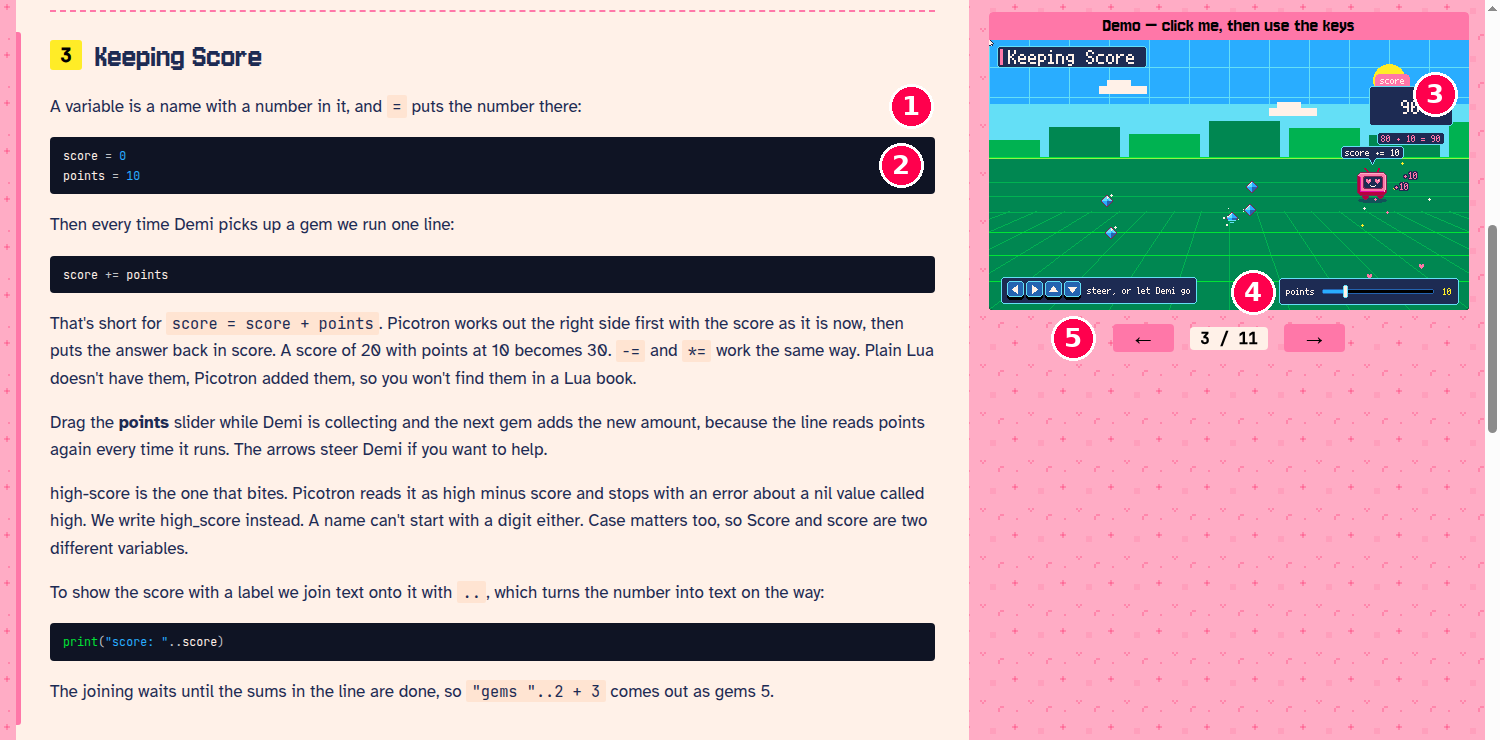
- The explanation for each part of the lesson, one section after another down the page.
- Bits of the code sit in the text where it talks about them.
- The demo is that section's idea running. It stays put while the page scrolls, and it switches to whichever section you're reading. Click it to start it, then click it again whenever you want it to listen to the keyboard. Its buttons are the arrow keys plus Z and X.
- Anything on the demo that looks like a control is one. Its sliders drag and its switches click. Hold the mouse down on a key drawn on the demo and that key counts as pressed, which lets you play it without a keyboard.
- The arrows jump to the previous or next section and scroll the page there.
At the end of the lesson, Try It has a whole program that puts the lesson's ideas together, running in the demo.
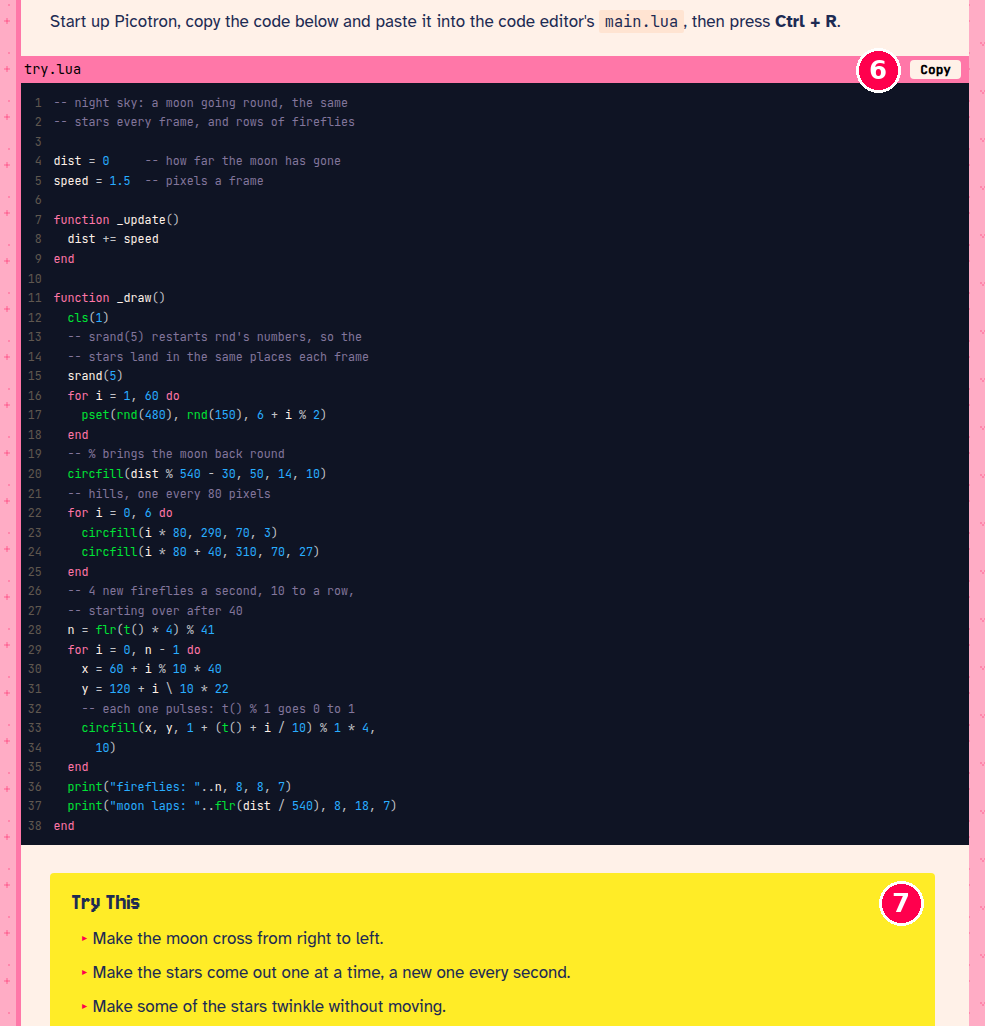
- Copy puts the program on the clipboard, ready to paste into Picotron.
- Try This has the challenges. Reading tells us what the code does, and the challenges ask us to change it so it does something else, so paste the program into Picotron and do them there.
The rest of the lessons are articles like this one, with screenshots in place of a demo beside the page, because the work they cover happens in Picotron's editors and terminal.
Buttons and Keys
Picotron programs read a small controller with four directions and two action buttons. Picotron calls the action buttons O and X, which are names that fit a gamepad and a keyboard equally well, so a program never has to care which one you're holding. On a keyboard the directions are the arrow keys, O is Z or C, and X is X or B.
The trouble is that an O written in the text looks like the O key on your keyboard, which isn't one of the controller's buttons at all. So these pages always show the key you actually press. Z means Picotron's O button and X means its X button, and if you point at one it shows its Picotron name. In code they're buttons 4 and 5, which Basics 4 gets into.
The demos on these pages go by the letter printed on the key, so whatever your keyboard is you press the keys marked Z and X. Picotron on your computer goes by where the key sits instead. On a French AZERTY keyboard its O is the key marked W, and on a German QWERTZ keyboard it's the key marked Y, because those keys sit where Z is on an English keyboard. The "Controller Keys" section of the manual shows how to change which keys Picotron uses.
When you're stuck, ask in the #help channel of the Picotron Discord, and the link to it is at the bottom of every page.
Putting It Together
Now we've got Picotron installed and we know our way around its workspaces. We have a first program in main.lua that runs with Ctrl + R and stops with Escape, and it's saved as hello.p64, so load hello brings it back. When it breaks, the error message gives us the line and the name to look at.
What we don't know yet is what any of that code actually does, or where save hello put the file. Basics 1 answers the second one by looking at the drive, then Basics 2 starts taking the code itself apart.
Try This
- Which numbers in the program decide where the message gets printed? Find them, then move the message so it sits above the circle.
- Delete the
endon the very last line and press Ctrl + R. Picotron points at a line that comes after the last line of your program. Why can't it point at the real mistake? - Picotron has a screenshot key, Ctrl + 6. Take a screenshot of your program while it's running, then track down where Picotron put it on your computer.
Built with Picotron 0.3.0d.