Demotron / Beginner basics / 01
Files and the terminal
The Drive
Back in Getting Started we typed save hello and Picotron answered saved cart: /hello.p64, which is fine, but saved it where exactly?
Picotron has its own drive with folders in it, same as any computer, and the easiest way to look around it is the file browser, so on the desktop double-click the Picotron Drive icon.
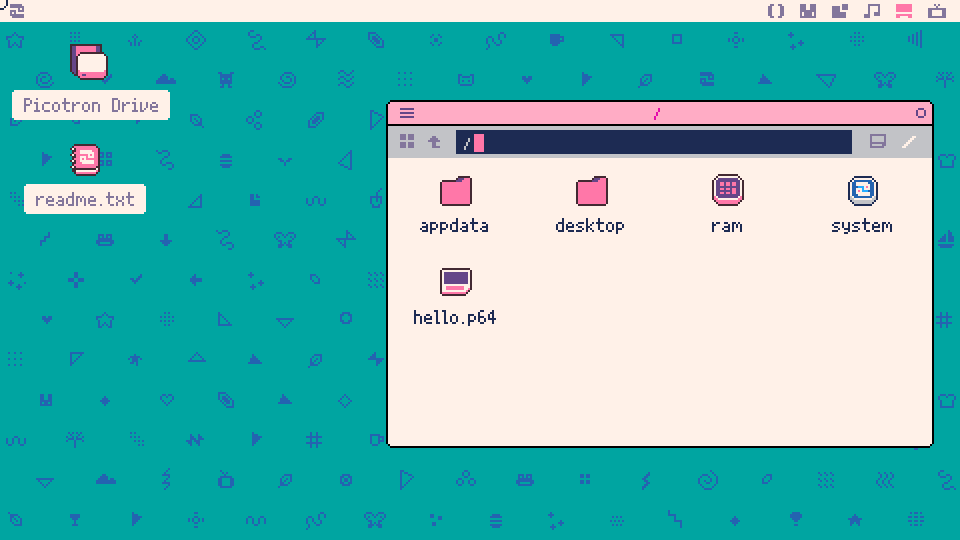
This is the top of the drive, the folder that every other folder is inside, and its whole name is just a slash, /. The slash at the start of /hello.p64 is this folder, so save hello put our cartridge right at the top. The four folders beside it come with every copy of Picotron.
- desktop is everything on the desktop. The Picotron Drive icon we just double-clicked lives in here as a small shortcut file called drive.loc, and readme.txt is in here too.
- ram is Picotron's memory. The thing in it that matters is /ram/cart, the working cartridge from Getting Started, which is the code you're editing right now. Nothing in /ram ever gets written to disk, which is the whole reason saving matters.
- system is Picotron itself, meaning its editors, the file browser, the terminal commands etc. Poke around in there as much as you like, but Picotron doesn't keep changes made to /system, so our own work goes somewhere else.
- appdata is where programs keep their own files such as settings and high scores.
The ram and system folders get their own icons because they aren't ordinary folders on disk.
Double-clicking a folder opens it, but double-clicking a .p64 file runs the cartridge the way a player would, and leaves the cartridge in the editors alone. To work on a cartridge we load it, with the terminal's load command.
The Terminal
The file browser is good for looking around, but the terminal does all the same stuff by typing, and once you've got the handful of commands below down I find it quicker for everything else. Open it with Escape from the desktop or by clicking the TV icon, and type in the commands from the screenshot, pressing Enter after each one. If you've saved anything besides hello, ls lists that too.
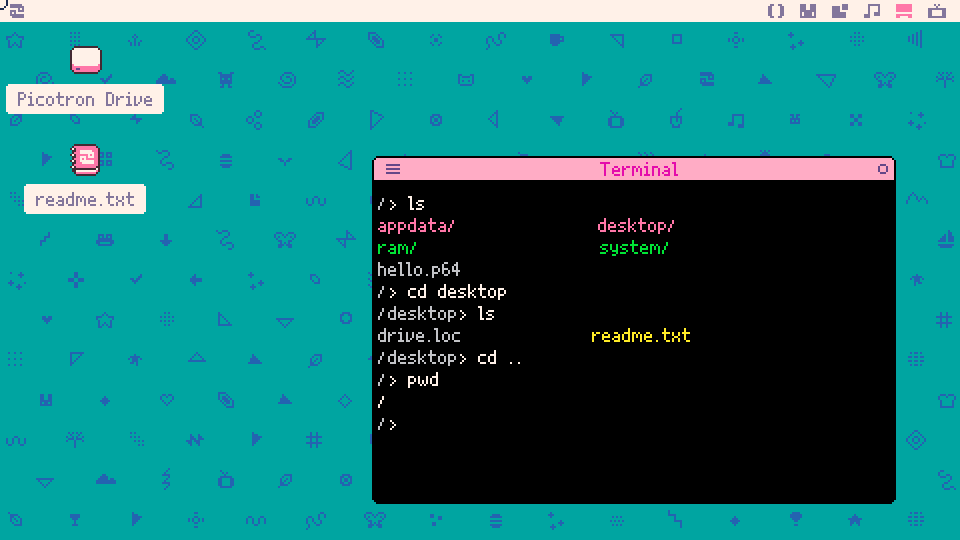
Every line we type starts after />, which is called the prompt, and the bit before the > is always the folder we're in, which right now is /, the top of the drive.
lslists what's in the current folder. Folders end in a slash and show up pink. The ram and system folders are green because they aren't ordinary folders. Files are coloured by type, so .txt files are yellow and .lua files are blue, while cartridges like hello.p64 stay plain grey.cd desktopchanges directory into desktop ("directory" is just another word for folder). It doesn't print anything, but the next prompt says /desktop>.cd ..goes back up one level. Two dots always mean the folder above this one.pwdprints the working directory, which is the folder we're in. The prompt already shows that, so you won't need pwd much in Picotron. These command names come from Unix, though, which is why a Mac or Linux terminal has them too.
A name for a place on the drive is called a path. /desktop/readme.txt is one, and there are two ways to write them.
Plain cd desktop means the folder called desktop in here, so it only works from a folder that has a desktop inside it. That kind is a relative path, because where it leads depends on where we are. With a slash in front, cd /desktop means start from the very top. That kind is an absolute path, and it works from anywhere. Every name we hand a command works like this whether it's a folder or a file.
Two keys save us a lot of typing. Tab finishes a file or folder name once we've typed the first few letters, and the Up arrow brings back earlier commands.
Managing Files
Keeping each project in a folder of its own stops the top of the drive from filling up with forty cartridges all called some version of test, so let's make a games folder and save a copy of hello into it.
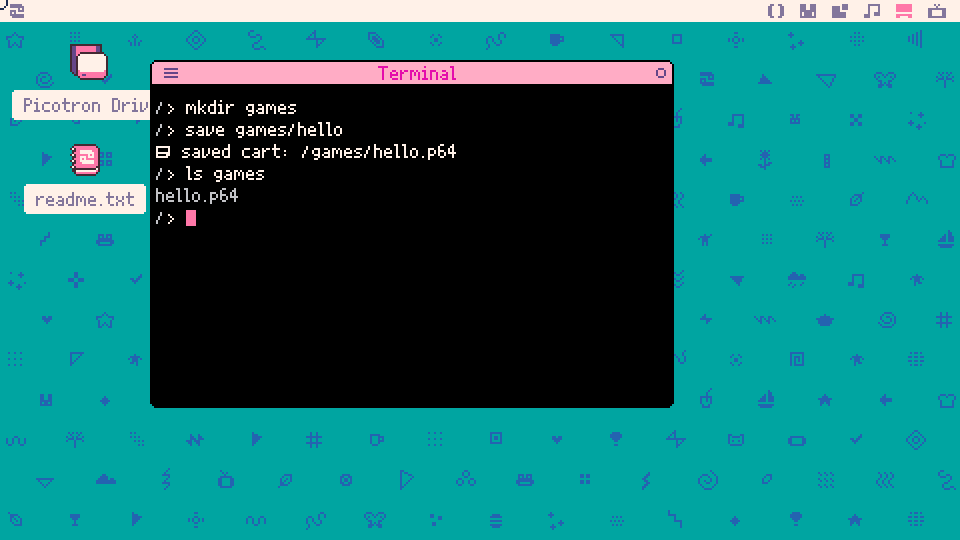
The mkdir games line makes a directory (mkdir is short for make directory), then save games/hello saves the working cartridge inside it, because games/hello means hello in the games folder, and Picotron sticks the .p64 on the end for us. After that, ls games lists what's in a folder without going into it.
There's a catch, though. Saving under a name also makes that name the cartridge we're working on, so from now on Ctrl + S saves to /games/hello.p64 and leaves the /hello.p64 we started with alone.
Then there are three more commands, for copying, renaming and deleting.
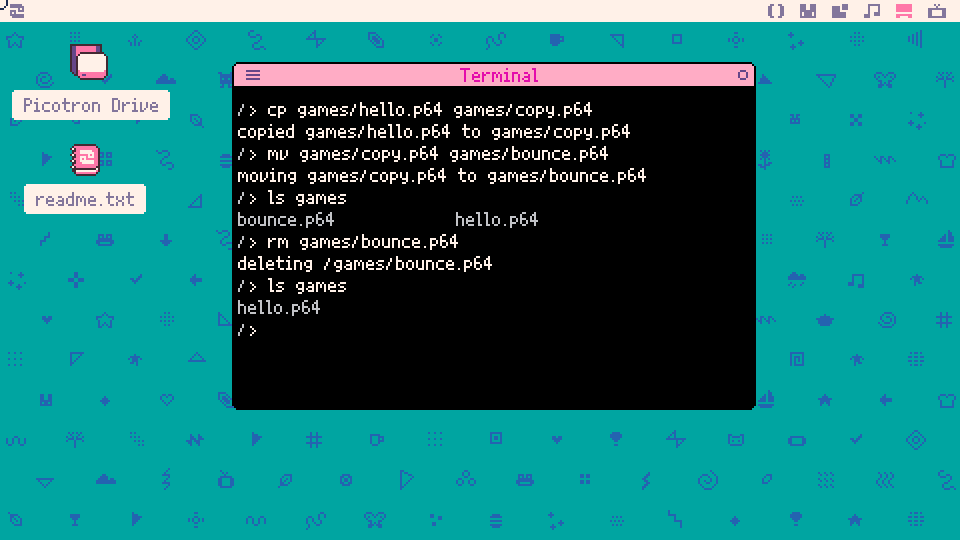
cp games/hello.p64 games/copy.p64copies the first thing to the second name. It won't copy over a cartridge or folder that's already there, though it tells you how to if you really mean it, and for any other file it asks before writing over it.mv games/copy.p64 games/bounce.p64moves it, and moving something to a new name in the same folder is how we rename it. Like cp, it won't move over an existing cartridge or folder, but it will replace an ordinary file with the same name without asking, so check first.rm games/bounce.p64removes it. It doesn't ask "are you sure?" either, and if you give it a folder it removes the folder and everything inside it. Read an rm command twice before you press Enter, three times if the folder is called something like my_game_FINAL_final_v2.
A cartridge you deleted by mistake isn't gone for good, though, because Picotron keeps a copy of every version of a file it saves, and rm doesn't touch those.
The Working Cartridge
So what actually happens when we save?
The cartridge you're editing lives in memory as a folder called /ram/cart. Typing in the code editor or drawing in the sprite editor changes the files in there, and Ctrl + R runs whatever's in there, which is why you never need to save before pressing Ctrl + R. Memory isn't kept when Picotron shuts down, though, so until we save, the work only exists in /ram/cart.
That means saving and loading are really just copying.
save hellocopies /ram/cart out to hello.p64 on the drive, and from then on Ctrl + S copies it there again.load hellocopies hello.p64 in, replacing everything in /ram/cart. If there are changes you haven't saved, it asksdiscard unsaved changes? [y/n]first, and that's your chance to say no and go save them.
To check which cartridge we're working on, we can just ask info.
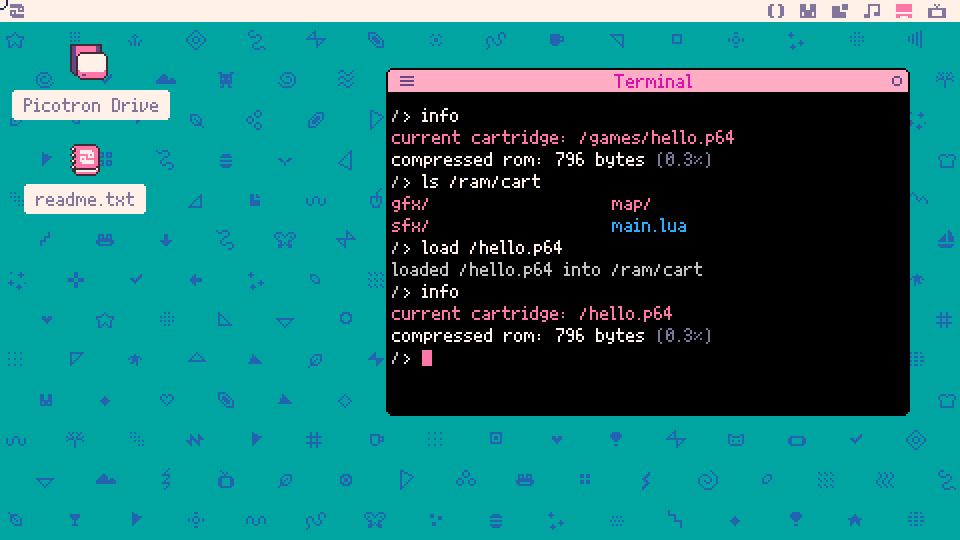
- The first info says we're working on /games/hello.p64, which is the copy in games. When there are unsaved changes it says so on an extra line. The compressed rom line is how big the cartridge is once it's packed up. Cartridges are often shared as a .p64.png, which is an ordinary PNG picture with the whole cartridge packed inside it, and one of those can hold up to 256k, so the percentage is how much of that this one uses.
- Listing /ram/cart shows what a cartridge really is, which is main.lua where the code goes, plus the folders gfx, map and sfx for sprites, maps and sounds.
- Then
load /hello.p64brings the original back into /ram/cart, and the second info agrees that /hello.p64 is the working cartridge now, so Ctrl + S saves there again.
Anywhen
Every time Picotron writes a change to a file on its drive, it keeps a record of that version. It's called Anywhen, most computers don't have anything like it, and it makes a saved cartridge really hard to lose for good.
Say we changed hello's circle to red and pressed Ctrl + S. Then we changed the message and pressed Ctrl + S again, and now we want the original back. Adding /@ to the end of a file's name lets us look into its past.
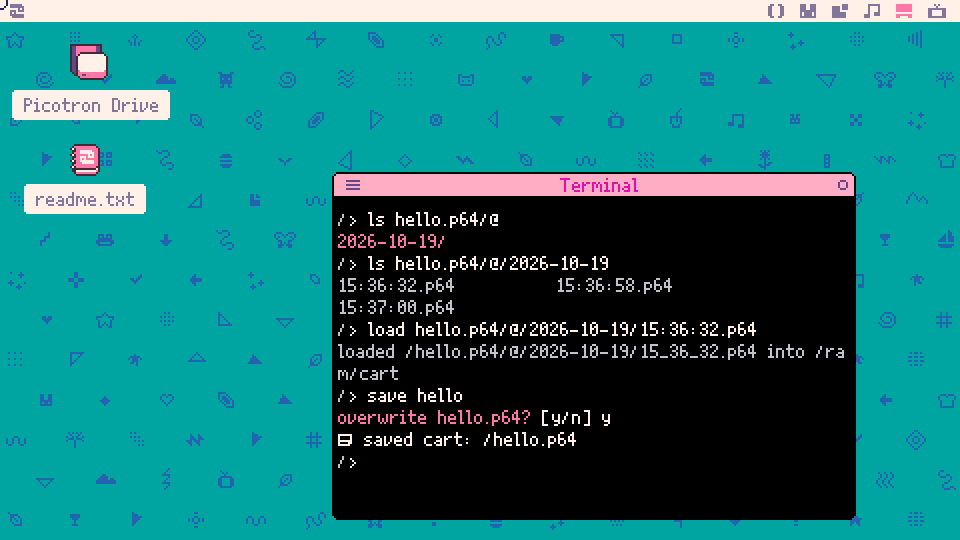
ls hello.p64/@lists the days the file changed. We only changed it today, so there's one day folder.- Inside a day folder there's one cartridge for every moment it was saved, named by the time. The times are in GMT, so they might not match your clock.
- Loading works on any of them, the same as on a normal cartridge. In its reply Picotron writes the time with an underscore where the colon goes, and both work in these names. Here the earliest one is the original, from before either change.
- Last,
save helloputs it back as hello.p64. Saving with a name always asks before replacing a file that's already there, so Picotron asksoverwrite hello.p64?and we answer y.
That last step has to be save hello, because right after loading an old version the working cartridge is that old version (info will confirm it), so Ctrl + S doesn't copy it back into hello.p64.
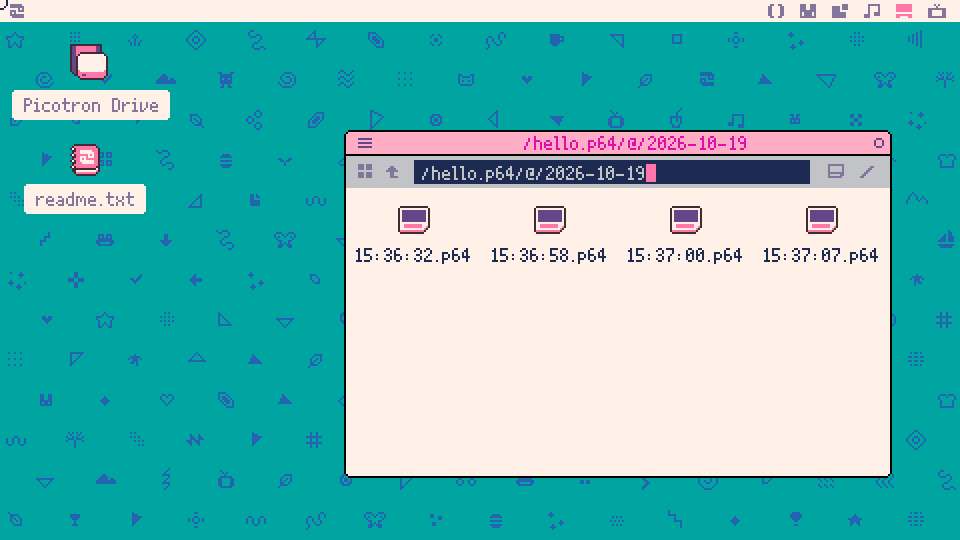
The file browser shows the same history if you type open hello.p64/@ and open a day, and there's an extra version at the end, because saving the old one back got recorded too, so even an undo can be undone.
Anywhen records the files Picotron writes to its drive and nothing in /ram, so it only knows about saved work. It also remembers files that have since been removed, so listing with /@ still works on the name of a cartridge you deleted with rm. You can switch Anywhen off in Picotron's settings, but it's on unless you change it.
There's one quirk, which is that in the very first session after installing Picotron, Anywhen doesn't record anything yet. So if ls hello.p64/@ comes back empty, restart Picotron and save again, and it records from then on.
The Drive on Your Computer
Picotron's drive is a real folder on your real computer, and getting at it from outside Picotron is how we back up our work or send a cartridge to a friend. Type this in the terminal.
folderYour computer's own file manager opens on the folder you're in. Nothing changes inside Picotron, because the window opens on your real desktop, so if Picotron is filling the screen you may have to switch away from it to see the window. Typing folder / opens the top of the whole drive.
Unless it's been set up differently, the drive is the folder called drive inside Picotron's own folder, which lives here.
C:/Users/Yourname/AppData/Roaming/Picotronon Windows/Users/Yourname/Library/Application Support/Picotronon a Mac~/.lexaloffle/Picotronon Linux
On your computer each .p64 cartridge is a single file. Copying it somewhere safe backs it up, and a friend can copy it into their own drive folder and load it.
Putting It Together
We can get around Picotron's drive now and keep each project in its own folder, and we know a save is really just /ram/cart getting copied out to the drive, with Anywhen keeping every version in case we mess up. Hello itself still only draws a circle and a message, though, which is pretty meh as games go.
Next up is Basics 2. It starts on the code itself with the functions Picotron calls over and over to make a game move.
Try This
- Change something small in hello. Then
cd gamesandsave hellothere. Go back up withcd ..and typeload hello, but before you press Enter, decide which of your two hellos you're about to get. The info command will tell you if you were right. - What does going up a level do when you're already at the very top of the drive, and what about
cd /? Try both and watch the prompt. - Change hello, press Ctrl + S, then use Anywhen to bring back the version from just before that change. How can you tell which moment is the one you want before you load it?
- The commands on this page are small Lua programs that live in /system/util. List that folder and find them all. One of them isn't in there. Which one is missing, and why might that be? While you're poking around, run
folderfrom inside /ram/cart. What does Picotron say?
Built with Picotron 0.3.0d.